Showing posts with label learning windows 10 for beginners. Show all posts

Wednesday, June 5


ACTION CENTER AND NOTIFICATIONS | WINDOWS 10 FOR BEGINNERS


20010006e Action Center and Notifications | windows 11 for beginners


https://youtu.be/XvcgT27pEF0


https://youtu.be/DqA9XMrhxWc?si=dN0_HeB6lA11e9nj


#windows, #tutorial


In this video we

We will see six e-lectures, our learning.

Action Centers and Education Fund of

In the notification window

The lecture stated that mostly

Which is a small button on the right side.

If you put any effort into it, a new one will appear.

If the notification is on, then it actually is.

We are giving one lecture or a combination of two lectures

This is the first

I wanted to tell you that by looking

See Action Center and Notifications

Information in this when your

If they are in front of you, you can ignore them.

Can clear can close

First of all, you can stop.

See I clicked on it and it's yours.

Click on them and a notification will appear

If you omit it, it will be ignored.

If you want to clean them, clean them.

All clear, all closed.

Also you will turn someone off.

Above each notification if you want to do this

Here comes cross-notification.

You can turn it off here, I've turned it off.

See, if it stops, stop too.

This is the notification setting, see this

Do not disturb here means stop.

Reports say something like this.

If there are notifications, the notifications are attached.

Let's keep adding together

I turn three off and see if it's clear.

If I do this, everything will be over, right?

It was a notification lecture.

A window prompts you to do this.

It has to do, it has to do, it means something special has to happen.

If this happens, you are notified.

So in different order of things

Notifications are given on different apps.

Gives notifications that you ignore at the same time.

Do or you watch them together.


ایکشن سینٹر اور اطلاعات


اس ویڈیو میں ہم

ہم چھ ای لیکچر دیکھیں گے، ہمارا سیکھنا ہے۔

ایکشن سینٹرز اور ایجوکیشن فنڈ آف

نوٹیفکیشن ونڈو میں I

لیکچر میں بتایا گیا کہ زیادہ تر

جو کہ دائیں جانب ایک چھوٹا سا بٹن ہے۔

اگر آپ اس میں کوئی کوشش کریں گے تو ایک نیا سامنے آئے گا۔

اگر نوٹیفکیشن آن ہے تو حقیقت میں ہے۔

ہم ایک لیکچر دے رہے ہیں یا دو لیکچرز کا مجموعہ

اس میں پہلا ہے

میں آپ کو بتانا چاہتا تھا کہ دیکھ کر

ایکشن سینٹر اور اطلاعات اور دیکھیں

اس میں اطلاعات جب آپ کی

اگر وہ آپ کے سامنے ہیں تو آپ انہیں نظر انداز کر سکتے ہیں۔

صاف کر سکتے ہیں بند کر سکتے ہیں

سب سے پہلے تو ٹھیک ہے روک سکتے ہیں۔

دیکھیں میں نے اس پر کلک کیا اور یہ آپ کا ہے۔

ان پر کلک کریں تو نوٹیفکیشن سامنے آگیا

اگر آپ اسے چھوڑ دیں گے تو اسے نظر انداز کر دیا جائے گا۔

اگر آپ ان کو صاف کرنا چاہتے ہیں تو اسے صاف کریں۔

سب صاف ہے، سب بند ہے۔

اس کے علاوہ آپ کسی کو بند بھی کر دیں گے۔

اگر آپ یہ کرنا چاہتے ہیں تو ہر اطلاع کے اوپر

یہاں کراس نوٹیفکیشن آتا ہے۔

آپ یہاں سے بند کر سکتے ہیں، میں نے اسے بند کر دیا ہے۔

دیکھو اگر یہ رکتا ہے تو اس کے علاوہ رک جاؤ۔

یہ نوٹیفکیشن کی ترتیب ہے، یہ دیکھیں

یہاں ڈسٹرب نہ کریں یعنی رک جائیں۔

اطلاعات کچھ اس طرح بتاتی ہیں۔

اگر نوٹیفیکیشن ہیں تو نوٹیفیکیشن ساتھ ہیں۔

آئیے ایک ساتھ شامل کرتے رہیں

میں تین بند کرتا ہوں اور دیکھتا ہوں کہ یہ واضح ہے۔

اگر میں یہ کروں گا تو سب کچھ ختم ہو جائے گا، ٹھیک ہے؟

یہ ایک نوٹیفکیشن لیکچر تھا۔

ونڈو آپ کو یہ کرنے کو کہتی ہے۔

یہ کرنا ہے، یہ کرنا ہے، اس کا مطلب ہے کہ کچھ خاص ہونا ہے۔

اگر ایسا ہوتا ہے، تو آپ کو مطلع کیا جاتا ہے۔

تو مختلف چیزوں کی ترتیب میں

اطلاعات مختلف ایپس پر دی جاتی ہیں۔

اطلاعات دیتا ہے جسے آپ بیک وقت نظر انداز کرتے ہیں۔

کریں یا آپ انہیں ایک ساتھ دیکھتے رہیں.

Tuesday, May 28

WORKING WITH THE DESKTOP IN WINDOWS | FOR BEGINNERS


WORKING WITH THE DESKTOP IN WINDOWS | FOR BEGINNERS


1000 #Educationalvideo AND Pro Tips BISE of Gujranwala: https://bit.ly/4dcgleC

#GainTECH4IT

20010005b Working with the desktop in Windows 11 for beginners

https://youtu.be/DHXoR5kZahY?si=sybcn5dmTEPu_MXr


Now in this lecture we will start working with the next task. How is the desktop misc. More heads are executed and we will start as you after the section know that we have in the desktop. Things come up and the start menu comes up. The second task bar and the third comes up.

 Recycling comes in. When Windows is installed, it appears on your desktop like this. It hits nuke here first on green. There's a recycle bin and everything else. desktop screen is blank I tried it new windows update is wiz 11.23 s2 so this button is new here. We call right side widget. button available in previous windows version.

 This button in windows 11 version So basically there are three things i.e. desktop then desktop start menu or taskbar and recycle button, these three things we will study from this session onwards.

If we start with them, their different types we will discuss them and with him. Different types of work as our topic Working with desktop If we learn different work together, big problem for new students. Here's how to do something new. Old students know

How to Customize Desktop but lectures are large for new students.

ونڈوز میں ڈیسک ٹاپ کے ساتھ کام کرنا | ابتدائیوں کے لیے


1000 #Educationalvideo AND Pro Tips BISE of Gujranwala: https://bit.ly/4dcgleC

#GainTECH4IT

20010005b ابتدائی افراد کے لیے ونڈوز 11 میں ڈیسک ٹاپ کے ساتھ کام کرنا

https://youtu.be/DHXoR5kZahY?si=sybcn5dmTEPu_MXr


اب اس لیکچر میں ہم اگلے کام کے ساتھ کام شروع کریں گے۔ ڈیسک ٹاپ متفرق کیسا ہے؟ مزید سروں کو پھانسی دی گئی ہے اور ہم شروع کریں گے جیسا کہ آپ کو سیکشن کے بعد معلوم ہوگا کہ ہمارے پاس ڈیسک ٹاپ ہے۔ چیزیں سامنے آتی ہیں اور اسٹارٹ مینو آتا ہے۔ دوسرا ٹاسک بار اور تیسرا آتا ہے۔

  ری سائیکلنگ آتی ہے۔ جب ونڈوز انسٹال ہوتی ہے تو یہ آپ کے ڈیسک ٹاپ پر اس طرح ظاہر ہوتی ہے۔ یہ سبز پر سب سے پہلے یہاں نیوک کو مارتا ہے۔ ایک ری سائیکل بن اور باقی سب کچھ ہے۔ ڈیسک ٹاپ اسکرین خالی ہے میں نے اسے آزمایا نئی ونڈوز اپ ڈیٹ wiz 11.23 s2 ہے لہذا یہ بٹن یہاں نیا ہے۔ ہم دائیں طرف ویجیٹ کہتے ہیں۔ بٹن ونڈوز کے پچھلے ورژن میں دستیاب ہے۔

  ونڈوز 11 ورژن میں یہ بٹن تو بنیادی طور پر تین چیزیں ہیں یعنی ڈیسک ٹاپ پھر ڈیسک ٹاپ اسٹارٹ مینو یا ٹاسک بار اور ری سائیکل بٹن، یہ تین چیزیں ہم اس سیشن کے بعد سے مطالعہ کریں گے۔

اگر ہم ان سے شروع کریں تو ان کی مختلف اقسام ہم ان پر اور اس کے ساتھ بحث کریں گے۔ ہمارے موضوع کے طور پر کام کی مختلف اقسام ڈیسک ٹاپ کے ساتھ کام کرنا اگر ہم مختلف کام ایک ساتھ سیکھتے ہیں تو نئے طلباء کے لیے بڑا مسئلہ۔ یہاں کچھ نیا کرنے کا طریقہ ہے۔ پرانے طالب علم جانتے ہیں۔

ڈیسک ٹاپ کو کس طرح اپنی مرضی کے مطابق بنائیں لیکن نئے طلباء کے لیے لیکچرز بڑے ہوتے ہیں۔


Monday, May 27

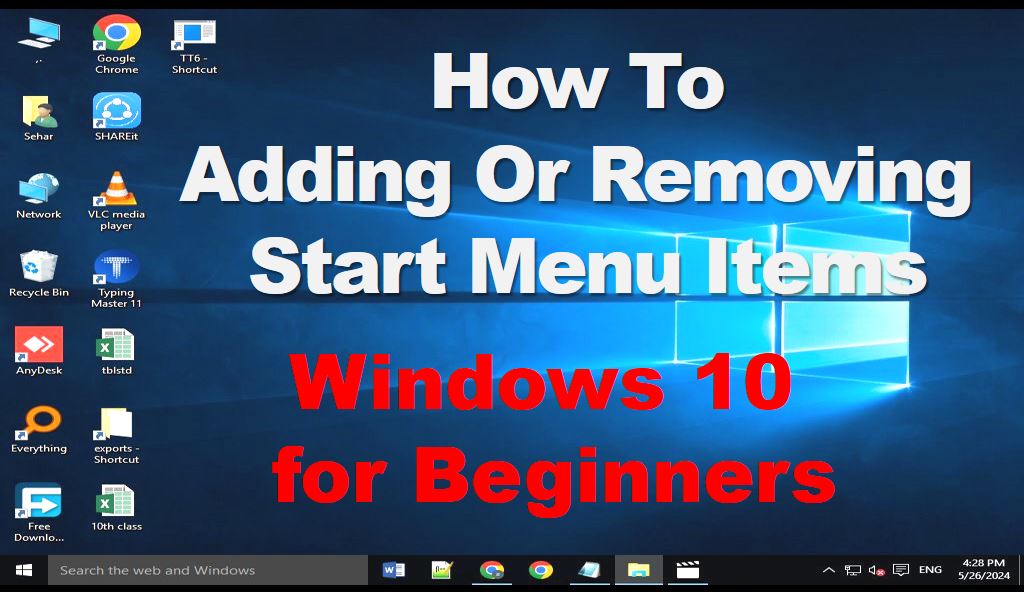
HOW TO ADDING OR REMOVING START MENU ITEMS | WINDOWS 10 BASICS

 HOW TO ADDING OR REMOVING START MENU ITEMS | WINDOWS 10 BASICS

https://youtu.be/sJz-f0NycSY

#EducationFUN, #windows, #tutorial, windows 10 for beginners, windows 11 tutorial for beginners in
hindi, windows 11 laptop for beginners, windows 10 tips and tricks for beginners,
windows 10 laptop for beginners,
how to use a computer windows 10 for beginners,
learn windows 10 for beginners,


 HOW TO ADDING OR REMOVING START MENU ITEMS | WINDOWS 10 BASICS


In this lecture we will discuss how

To add and remove Start menu items
The Start Menu as you know it in Windows 10.
It is centrally located here and
These are his items in front of you.
Now there seems to be some pinnacle here.
To do something and take it off is what we do.
The first thing I will see in front of you.
I run notepad plus.
Whatever the plus, I run it in front of you.
It's played here, now you click here.
If you do it recently here in notepad.
The one running empty is fine and the other one is this.
If it comes in highly recommended, do it.
All the items we opened.
It turns out, well, this is one of them.
Pretend it's VLC player, that's fine.
How did we embed it in the Start Menu?
What we have to do in this lecture is add and move
do actually these are the actual words that pin is used for.
What we have to do in this lecture is add and move
do actually these are the actual words that pin is used for.
So what is toxic in the start menu?
It could be the same pin, now it's Fox.
We have to add a page here, here's a way.
That I can click and take it there but this
If you can't find any other method, use it here.
done
Right click on it and you're here
The pin will come here Start the pin a bit.
Wait for a while then get up from there and come here.
OK, now click on it here.
Do this and get the pin when you get here.
Another way here is you can move it anywhere.
Can go anywhere.
Well one object inside another object
See if you leave it here, a folder can also be created.
Click on it and it will open afresh.
Maybe if we want to get it out of here.
You drag it apart.
OK, now I drag it here.
Click on the pin you want to red-pin.
From the beginning, this is the method I have shown you.
Told this thing is a recommended view.
Beyond that, by right-clicking, I told you
Here it is also possible.
For example, I have your desktop.
I have a Windows 10 desktop.
Here is the chrome I have right above it.
Pin to start here if I click.
If you can pin it too, yours
As many items as you want and you can start the menu.
You can pin inside Pin to here.
There is only one pin in the Start menu.
The second one here is the pin-to-taskbar.
It also happens here, see configuration, if I start
See this first pin in the taskbar
The PIN can also be found by clicking here.
Put it here and it will become an icon.
it was
This was your guide to adding and transferring.
Pin and unpin the Start menu.
So practice it with objects and
See where you can find any item in the Start menu.
How can you pin and unpin?
Check out the long list of apps here
On the Start menu, you can
Pin your favorite item by clicking red.
Start and if you come back, come back
You will see it, that is, if you see it again, you will
See what you've pinned here.
Available here in StartMenu.
We can pin in three places outside from inside.
And recommended it and here with
Just above the icons on the desktop
Start the process by clicking here.
Enter the pin item
Take it for less if you want.

pin and unpin are used here.

Click here and you will see here.

Stay tuned for educational information.


اس لیکچر میں ہم بات کریں گے کہ کیسے
اسٹارٹ مینو آئٹمز کو شامل کرنے اور ہٹانے کے لیے
اسٹارٹ مینو جیسا کہ آپ اسے ونڈوز1 ٠ میں جانتے ہیں۔
یہ یہاں مرکز میں واقع ہے اور
یہ اس کی اشیاء آپ کے سامنے ہیں۔
اب ایسا لگتا ہے کہ یہاں کچھ پن ہے۔
کچھ کرنا اور اتارنے کے لیے یہ ہم کرتے ہیں۔
پہلی چیز جو میں آپ کے سامنے دیکھوں گا۔
میں نوٹ پیڈ پلس چلاتا ہوں۔
جو بھی پلس ہے، میں اسے آپ کے سامنے چلاتا ہوں۔
یہ یہاں چلایا گیا ہے، اب آپ یہاں کلک کریں۔
اگر آپ اسے حال ہی میں یہاں نوٹ پیڈ میں کرتے ہیں۔
جو خالی چل رہا ہے وه ٹھیک ہے اور دوسرا یہ ہے۔
اگر یہ زیاده تجویز کرده میں آتا ہے تو اسے کریں۔
تمام اشیاء جو ہم نے کھولیں۔
یہ کھل گیا، ٹھیک ہے، یہ ان میں سے ایک ہے۔
دکھاوا کریں کہ یہ VLC پلیئر ہے، یہ ٹھیک ہے۔
ہم نے اسے اسٹارٹ مینیو میں کیسے سرایت کیا؟
اس لیکچر میں ہمیں جو کرنا ہے وه ہے ایڈ اینڈ موو
doاصل میں یہ اصل الفاظ ہیں جو پن کا استعمال کیا جاتا ہے۔
pinاور unpin یہاں استعمال ہوتے ہیں۔
تو سٹارٹ مینیو میں زہریلا کیا ہے؟
یہ وہی پن ہو سکتا ہے، اب یہ فاکس ہے۔
ہمیں یہاں صفحہ شامل کرنا ہے، ایک طریقہ یہ ہے۔
کہ میں کلک کر کے وہاں لے جا سکتا ہوں لیکن یہ
پن یہاں آئے گا پن کو تھوڑا سا شروع کریں۔
تھوڑی دیر انتظار کرو تو وہاں سے اٹھ کر یہاں آجاؤ۔
ٹھیک ہے، اب اس پر یہاں کلک کریں۔
یہ کرو اور جب تم یہاں پہنچو تو پن لے لو۔
دوسرا راستہ یہاں آپ اسے کہیں بھی منتقل کر سکتے ہیں۔
کہیں بھی جا سکتے ہیں۔
ٹھیک ہے ایک شے دوسری شے کے اندر
دیکھیں اگر آپ اسے یہاں چھوڑ دیں تو ایک فولڈر بھی بن سکتا ہے۔
اس پر کلک کریں اور یہ نئے سرے سے کھل جائے گا۔
شاید اگر ہم اسے یہاں سے نکالنا چاہتے ہیں۔
آپ اسے الگ سے گھسیٹیں۔
ٹھیک ہے، اب میں اسے یہاں گھسیٹتا ہوں۔
ریڈ پن کرنا چاہتے ہیں ان پن پر کلک کریں۔
شروع سے، یہ وہی طریقہ ہے جو میں نے آپ کو دکھایا ہے۔
اس چیز کو بتایا جو تجویز کرده نظاره ہے۔
اس سے آگے، دائیں کلک کرکے، میں نے آپ کو بتایا
یہاں یہ بھی ممکن ہے۔
مثال کے طور پر، میرے پاس آپ کا ڈیسک ٹاپ ہے۔
میرے پاس ونڈوز 1٠ ڈیسک ٹاپ ہے۔
یہ ہے وه کروم جو میں اس کے بالکل اوپر ہوں۔
اگر میں کلک کرتا ہوں تو یہاں شروع کرنے کے لیے پن کرتا ہوں۔
یہاں کلک کریں اور آپ یہاں دیکھیں گے۔
اگر آپ اسے بھی پن کرسکتے ہیں تو آپ کا
جتنی اشیاء آپ چاہیں اور آپ مینو شروع کر سکتے ہیں۔
آپ یہاں پن ٹو کے اندر پن کر سکتے ہیں۔
اسٹارٹ مینو میں صرف ایک پن ہے۔
دوسرا یہاں پن ٹو ٹاسک بار ہے۔
اسے یہاں دیں اور یہ ایک آئیکن بن جائے گا۔
یہ تھا
یہ آپ کے شامل کرنے اور منتقل کرنے کے لئے رہنما تھا۔
اسٹارٹ مینو کو پن اور ان پن کریں۔
لہذا اشیاء کے ساتھ اس کی مشق کریں اور
دیکھیں کہ اسٹارٹ مینو میں آپ کو کوئی بھی آئٹم کہاں مل سکتا ہے۔
آپ پن اور ان پن کیسے کرسکتے ہیں؟
ایپس کی لمبی فہرست یہاں دیکھیں
اسٹارٹ مینو پر، آپ کر سکتے ہیں۔
سرخ پر کلک کرکے اپنی پسندیده چیز پر پن کریں۔
شروع کرو اور اگر واپس آؤ تو واپس آؤ
آپ اسے دیکھیں گے یعنی اگر آپ اسے دوباره دیکھیں گے تو آپ
دیکھیں گے کہ آپ نے یہاں کیا پن کیا ہے۔
یہاں اسٹارٹ مین میں دستیاب ہے۔
ہم تین جگہوں یعنی اندر سے پن کر سکتے ہیں۔
اور اس کی سفارش کی اور یہاں کے ساتھ
ڈیسک ٹاپ پر شبیہیں کے بالکل اوپر
یہاں کلک کرکے عمل شروع کریں۔
پن آئٹم میں آئیں
اگر آپ چاہتے ہیں تو اسے کم میں لے لو۔